
HyperFluxCMS
Fast. Flexible. Free.


HyperFluxCMS
Audio and video in HyperCode
How to insert audio and video medias in your posts
HyperCode supports some basic elements for embedding audio and video media in your posts. See how.

There are 3 types of audio and video media directly supported by HyperCode and HyperFluxCMS: audio files, video files, and embedded videos.
The only type of Embedded Video supported by the current version of HyperCode is videos hosted on YouTube.
This DOES NOT MEAN that you CANNOT use videos from other sources, such as Tiktok, in your post. But for that, you will have to directly use HTML code according to the instructions of each platform. For YouTube videos, HyperCode has a specific tag that eliminates the need to use HTML for embedding.
For the other two types, the audio or video files must be valid files, hosted on the site itself or directly accessible by URL.
To use files hosted on the site itself, the files must be previously uploaded to the server using the tools offered by the hosting provider: FTP, Plesk panel, etc.
These tools vary between each hosting provider and it is not the objective of this article to teach how to use them. It is assumed that the reader already has knowledge about them or relies on support from the hosting provider for that.
It is recommended, but not mandatory, that these files be in a folder called /media/ within wwwroot.
The audio and video tags described below are some of the HyperCode Tags that are self-contained, meaning they DO NOT NEED and MUST NOT be used in "open/close" pairs. They should be used simply as a single tag.
Tag [audio]
The audio tag inserts an audio file into the post. It is normally displayed in the form of a frame with play, pause, etc. controls and a progress bar.
Syntax:
[audio src="path-to-audio-file"]
path-to-audio-file is the only mandatory property.
path-to-audio-file must contain the path to a valid audio file. It can be:
- a full path, such as "https://my-site-name.com/media/wow.mp3". In this case, you can use an audio file from the site itself or from an external source.
- a relative path, if it is a file from the site itself, such as "/media/wow.mp3"
The supported file formats are MP3, OGG, and WAV.
For most cases, WAV is not recommended, as it takes up much more space and bandwidth than the corresponding .mp3 or .ogg with little perceptible difference in quality.
Some browsers, such as some versions of Safari, may not support the .OGG format. Some browsers may support .MID. When in doubt, the most recommended is to use .mp3, which is widely supported by most modern browsers.
Anonymous property
The "src" property can be omitted and the link can be provided directly after the tag name.
[audio="/media/sample-audio.mp3"]
Additional properties
Like most HyperCode Tags, audio optionally accepts the properties class, style, and id. See Class, Style, id
Example:
[audio="/media/sample-audio.mp3"]
Tag [video]
The video tag inserts a video file into the post. It is normally displayed in the form of a frame with play, pause, etc. controls and a progress bar, as well as a preview window.
Syntax:
[video src="path-to-video-file" width="width" height="height"]
path-to-video-file is the only mandatory property.
path-to-video-file must contain the path to a valid video file. It can be:
- a full path, such as "https://my-site-name.com/media/intro.mp4". In this case, you can use a video file from the site itself or from an external source.
- a relative path, if it is a file from the site itself, such as "/media/sample-video.mp4"
The supported file formats are MP4, WebM, and OGG. Some browsers, such as some versions of Safari, may not support the .OGG format.
Anonymous property
The "src" property can be omitted and the link can be provided directly after the tag name
[video="/media/sample-video.mp4"]
Additional properties
width and height indicate, respectively, the width and height of the window within the page where the video will be displayed. They can be specified in pixels, pt, %, or any other valid HTML unit of measurement.
If neither the width nor height properties are provided, the video will be inserted in its original pixel size according to the file's own data.
If both width and height properties are provided, the video will be inserted in the specified size. If the measurements do not follow the proportion of the original image, the video may be displayed distorted, compressed, or stretched vertically or horizontally, to occupy exactly the specified size.
If only one of the width or height properties is provided, the video will be inserted with the specified dimension, with the other calculated automatically so that the video is displayed maintaining the original proportion and without distortion.
Like most HyperCode Tags, video optionally accepts the properties class, style, and id.
See Class, Style, id
Example:
[video="/media/sample-video.mp4"]
Tag [youtube]
The youtube tag embeds a YouTube video in the post.
Syntax:
[youtube vid="video-id" width="width" height="height"]
vid is the only mandatory property.
vid must contain the YouTube video Id. See instructions below.
width and height are optional, but it is highly recommended that they be specified. Without them, the display size is unpredictable, and furthermore, without them there may be compatibility issues
depending on the browser or in the future of YouTube itself;
Anonymous property
The "vid" property can be omitted and the video Id can be provided directly after the tag name
[youtube="xxxxxxxxxxxxxxx"]
Additional properties
width and height indicate, respectively, the width and height of the window within the page where the video will be displayed. They can be specified in pixels, pt, %, or any other valid HTML unit of measurement.
If neither the width nor height properties are provided, the video will be inserted in its size suggested by YouTube.
If both width and height properties are provided, the video will be inserted in the specified size. If the measurements do not follow the proportion of the original image, YouTube will likely display side or top/bottom bars to occupy the designated space without cutting or distorting the video.
If only one of the width or height properties is provided, the video will be inserted with the specified dimension, with the image cropped in a way that cannot be predicted here.
Note that the behavior of the youtube tag regarding omitted dimensions is very different from the img or even video tags. Therefore, the importance of providing these properties is reinforced, as their absence causes strange, unpredictable, and unwanted results.
Obtaining the video Id.
The video VId is a code of letters, numbers, and some symbols that identifies the video on the platform. It is usually 11 characters long.
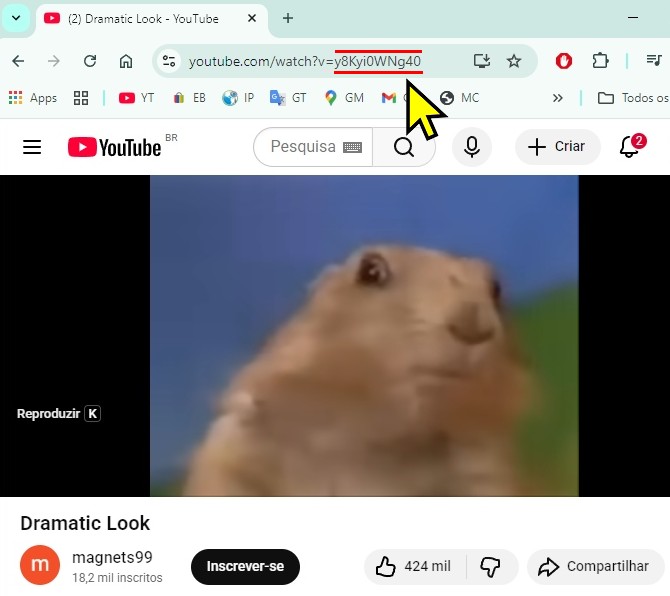
The simplest way to obtain it is to look at the link to the video and find the code that appears right after /v=. It may be that after the code a & symbol appears with other parameters (for example, &ab_channel=mychannel). Ignore everything from there onward. Take only what is after the /v= and before the next &.
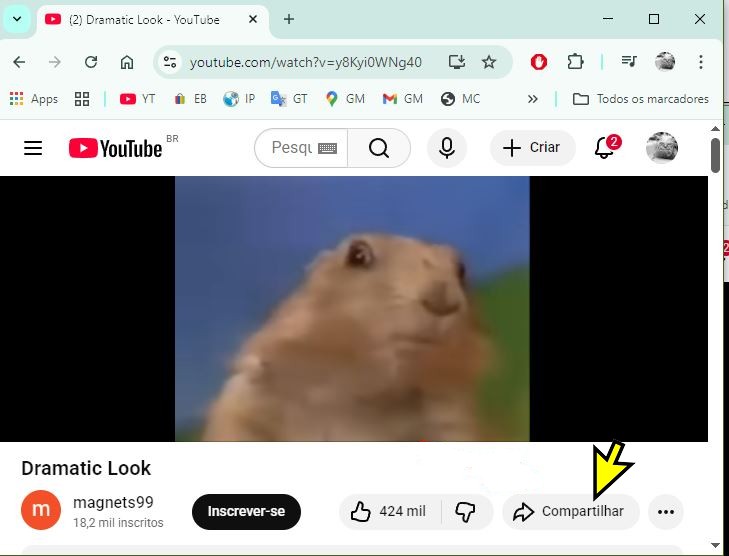
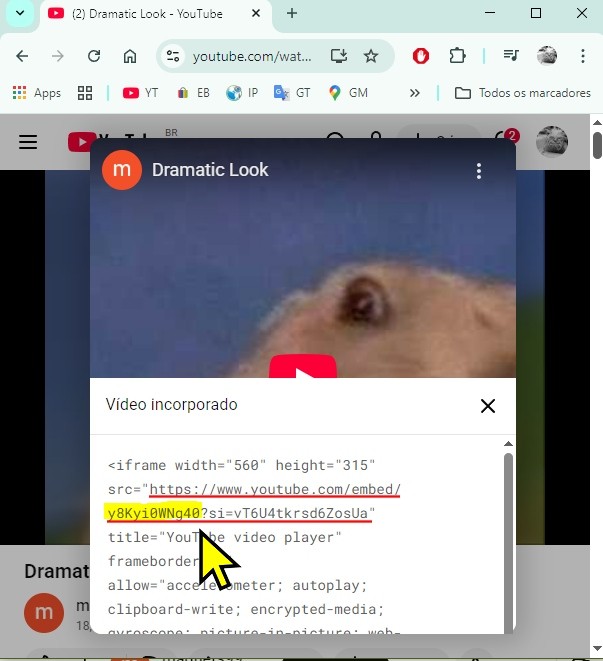
If it is difficult or impossible to access the full video URL, another option to obtain the video id is to click on "Share", then on "Embed" and look for the ID that will be right after embed and before the ?.
Example:
[youtube="J---aiyznGQ" width="400" height="225"]