
HyperFluxCMS
Fast. Flexible. Free.


HyperFluxCMS
Javascript and CSS
Use Javascript and CSS in your website
You can fine-tune the appearance of your site and add functionality using Javascript and CSS.
You can change the appearance and behavior of your site using javascript and CSS style sheets on your pages.
Every page that your visitor loads when visiting your site automatically also downloads other files.
The main and indispensable ones are the system's Javascript and CSS, which are located in the /wwwroot/themes/system folder. Without these files, or if they are deleted from the site or modified, your site's appearance may become completely weird, unpredictable, and stop working.
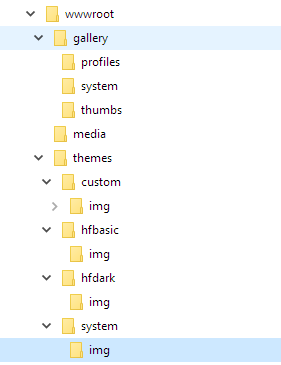
Soon after, if you use any Theme for your site, the theme-specific Javascript and CSS files are downloaded.
For example, if you choose the dark theme hfc-dark, HyperFluxCSS sends this style sheet (in /themes/hfc-dark) to the visitor, instructing the browser to replace the default colors with the dark theme colors.
And finally, if your site has custom javascript and style sheets, in /wwwroot/themes/custom, they are also sent to the visitor's browser to shape your site's behavior and appearance the way you want.
Thus, first the System Javascript and CSS are loaded. Then the theme's Javascript and CSS are loaded. And finally, optionally, your site's custom JavaScript and CSS, if it has any.
If the style or script applies only to a specific page, it is recommended to insert the code using the html and tags directly into the body of the page code.
But if the style or javascript is shared/reused across multiple pages, it is worth editing the Global Javascript and CSS files.
For this, your user profile defined by the site administrator must have the permission to Change the appearance and configuration of the site. Then you will have access to edit the CSS style sheets and Javascript that are automatically added to ALL pages of the site.
To do this, click on the "Javascript and CSS" option. If this option does not appear for you, it means that your user does not have the permission to Change the appearance and configuration of the site. Then you must contact the site administrator to grant you this permission, or log in using a user that has it.
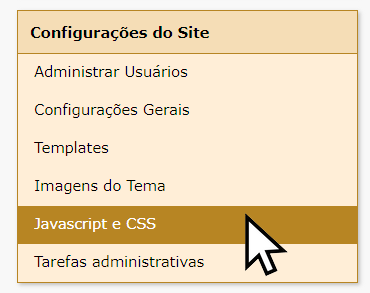
After clicking on the "Javascript and CSS" option, you will see fields to edit your site's custom Javascript and CSS.
Edit the Javascript and CSS or paste from somewhere else where you already have them ready and save. Then open the desired page that uses the new script or style and see if the result is satisfactory. If necessary, go back and correct the files until you get the desired result.
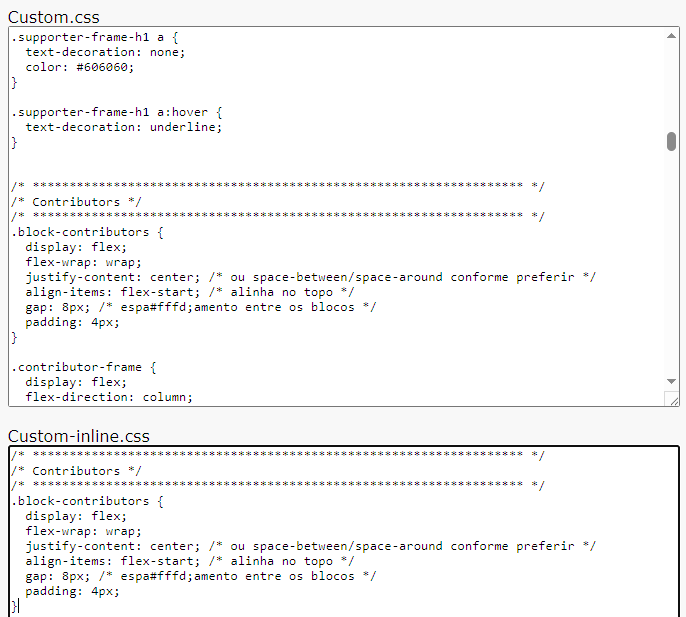
Note that this should be used with caution. Modifying, for example, any attribute of the "body" element in these CSS will change the characteristics of ALL pages of the site. This can be good if done intentionally and consciously, but if done accidentally or with errors, it can distort the entire site until the problem is fixed. That is why, for specific pages, it is recommended to insert the style sheet or javascript directly into that page's code.
Difference between Custom.css and Custom-inline.css; and between Custom.js and Custom-inline.js
The custom Javascript and CSS files are up to four: two Javascript and two CSS. One of each is "inline" and the other is not.
The non-inline files are separate files on the server. The visitor's browser loads the main page, downloads the system files, and then makes a new connection to your site to download these files.
The "inline" files are sent embedded, built into each visited page. This can prevent the visitor's browser from having to make a new request. But on the other hand, they make each page slightly larger in size.
If any style property is present in both the inline and non-inline files, the inline file takes precedence, so it prevails.
Both have advantages and disadvantages.
Inline is loaded on every page of your site and does not require a new file access for each page your visitor accesses. It is better for short files and when your visitor is unlikely to visit many and many pages at once, such as simple, static sites. Furthermore, inline has the advantage of ensuring that the page is never loaded without the Javascript and style sheet.
Non-inline requires a new access to the site, but the browser usually keeps a copy of it that prevents it from having to be downloaded again every time. On very poor connections, there is a small chance of the connection dropping before downloading the files, making the site have a deformed design and requiring the visitor to reload the page. It is better for longer files or for sites that have many posts to keep the user browsing through several pages, such as newspapers and humor sites.
In practice, in most cases, it is more recommended to use non-inline. Despite this additional process of accessing the site and fetching the file, this delay is usually imperceptible to the user, unless you are hosting the site on a server with very high latency in some foreign country, or if the visitor has a very poor Internet connection.