
HyperFluxCMS
Fast. Flexible. Free.


HyperFluxCMS
Templates
Understand and learn how to use Templates
Templates are reusable code blocks used by HyperFluxCMS to standardize and optimize the site and facilitate changes to the page layout.
HyperFluxCMS is based on "templates", reusable code models.
There are several advantages to using templates:
Reusable code:
For example, in the Search results list, each result is shown in a "box" that follows the same template. Or in posts, those who write them don't need to worry about repetitive things, such as placing a cover image, navigation menu, or post date and time. Just choose a template that already has these elements and simply focus on the text and content of the post.
Standardization:
All pages based on the same template have a consistent and familiar appearance.
Easy modification:
If you or a web designer decide to change the appearance of a template (for example, changing the site logo or colors), just change the template and automatically all posts based on that template will be updated.
There are two types of templates: "top-level" and non-"top-level".
Top-level templates are those that can be used as a base for posts. For example, the search page, the home page, and content pages.
Non-top-level templates are used as parts of pages. For example, each frame that contains a result on the search page, or the "Recent Posts" frame, are non-top-level templates.
Only users who have the permission to "Change the appearance and configuration of the site" have access to the template listing. If this option does not appear for you, the site administrator has not given you this permission. This is normal, since normally, it is recommended that only the site administrator and, sometimes, a professional web designer have access to these functions.
A template is a code snippet that is normally written in HTML or HyperCode, or a mixture of the two.
In addition to HTML and HyperCode code, the template can contain references to Parameters provided at runtime by the page that loaded it. See Using Variables and Parameters.
What is inside these markups will be replaced, at runtime, by dynamically generated content. For example, inside a Recent Posts template, the @p:list markup is replaced by an automatically generated list containing links and text for the site's most recent publications.
To edit or create templates, a good knowledge of HTML or HyperCode is necessary. Changing them without being sure of what you are doing can cause the site to become completely misconfigured and difficult to fix. Therefore, DO NOT CHANGE IF YOU ARE NOT SURE WHAT YOU ARE DOING. Leave it to experienced web designers.
Editing Templates
If you have the permission to Change the appearance and configuration of the site, you will see the "Templates" option in the menu. Click on it to see a list of the site's templates.
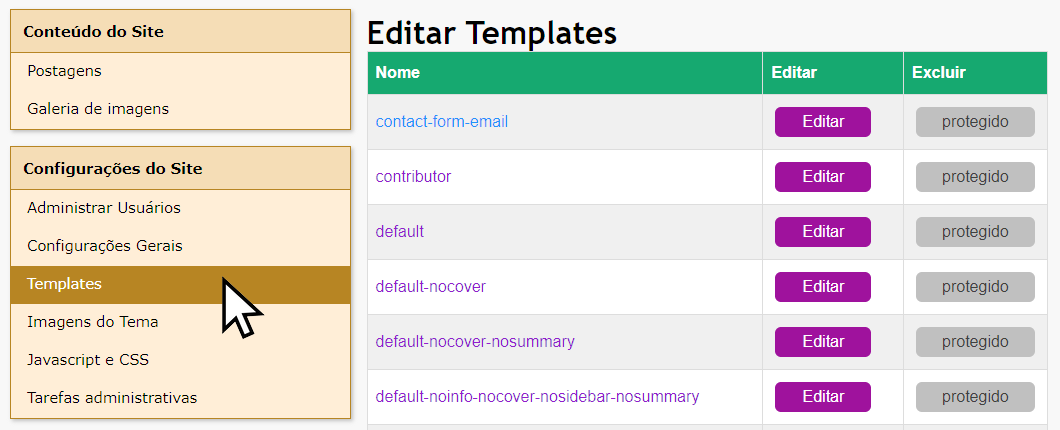
Clicking on one of the templates will give you access to its source code and its properties.
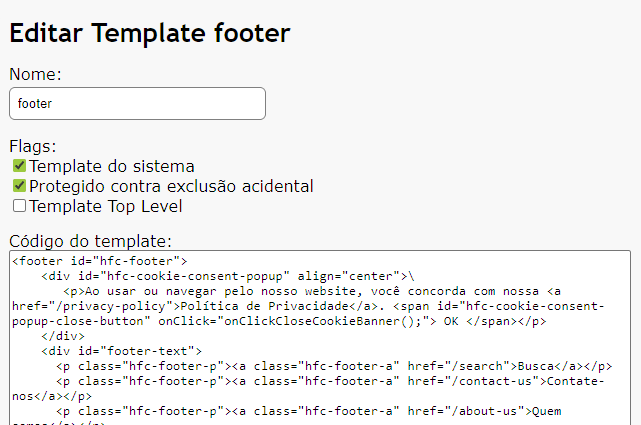
Name:
The first field is the template name. Only change the name of templates you create. Do not change the names of System templates. Doing so may cause your site to stop working.
Also be very careful when changing a template's name. If it is already being used by some page and the name is changed, when that page is accessed by a visitor, it will not load correctly.
Also configure the template options:
- System Template: indicates that the template is part of the HyperFluxCMS system and is essential for the system to work correctly. If it is deleted, corrupted, or renamed, your site will stop working correctly;
- Protected against accidental deletion: prevents the template from being accidentally deleted;
- Top Level Template: indicates that the template can be used as a base frame for published posts.
Code:
Contains the template code, in HTML, HyperCode, or a mixture of the two. Edit as you wish, but remember: ONLY CHANGE IF YOU ARE SURE WHAT YOU ARE DOING. A poorly edited template, even if only missing a symbol like ">", can cause your site to become misconfigured, weird, and it may be difficult to find the problem.
After checking everything, click "Submit".
If there is any error, go back to fix it. Otherwise, the template will have been edited and will be ready for use. If it is already used, whether top-level or not, the changes should be automatically reflected in the posts that use this template.
Creating Templates
In the Templates listing, click "Create New".
Choose a name for the new template. The name should only contain numbers, unaccented letters, and the signs "-" and "_".
Configure the Template options.
Edit the template source code.
After checking everything, click "Submit".
If there is any error, go back to fix it. Otherwise, the template will have been edited and will be ready for use.
Deleting a Template
In the Templates listing, click the "Delete" button corresponding to the template you want to delete.
It may be that the template you want to delete appears as "protected" and it is not possible to delete it. This is intentional to prevent accidental deletion of important templates.
To do this, you must first EDIT the template, uncheck the "protected against accidental deletion" option, and then return to the template listing. This time the "Delete" button should be available.
Important notes:
Be VERY careful when deleting a template. If you delete a template that is used on one or more pages, they may stop working or appear distorted, with elements missing or out of place.
Think a thousand times before deleting, renaming, or editing a template marked as "System Template". They are essential for the functioning of HyperFluxCMS. Without them, things like the search page, page headers, suggested post listings, and much more may stop working.
Template variables and properties
If templates were simply fixed code snippets, they would be useful, but their application would be limited.
In HyperFluxCMS, Templates are more powerful than that. Part of the code can be dynamically changed with values that vary on a case-by-case basis.
One way to do this is by using Parameters and Variables in the template code.
For example, a page header template should contain the site name. Instead of editing the template to match the value configured in the site properties, the template can use the site.name variable, which will be inserted automatically according to the value configured at the time the page is accessed.
But in addition, a template can contain Template Parameters.
These properties are accessed by the special sequence @p:parameter-name.
For example, @p:container-class inserts at that point in the code the value that was passed as "container-class" when inserting the template.
Suppose there is a template called borderbox to display a text box with borders and specific text, and that template has the code:
<div style="border-style: solid;">@p:text</div>
In some page or another template, you can include this template and pass the desired text in the @p:text parameter.
[template name="borderbox" text="Hello, World!"]
This will generate in the accessed page the HTML code referring to the borderbox template, replacing @p:text with "Hello, World!".
<div style="border-style: solid;">Hello, World!</div>
See more at Templates in HyperCode.
The @p:list property
The @p:list property is a special parameter that deviates from the common rule of template parameters. It is used in special templates that are used to display a list of post summaries, on a search result page, on the site's home page, or in suggested post frames for the visitor.
The @p:list property indicates where, in a template, the listing of items obtained through a postlist should appear. It should only be used in templates that are used as container templates for a postlist. In other cases, using it does not make sense.
The @p:page.content property
The @p:page.content property is a special parameter that deviates from the common rule of template parameters. It is used in special "Top-level" templates, used to display an entire post.
The @p:page.content property indicates where, in a template, the main content of the page should appear. It should only be used in templates that are marked as being of the "Top-Level" type.