
HyperFluxCMS
Fast. Flexible. Free.


HyperFluxCMS
Images in HyperFluxCMS
How to decorate your posts with images
HyperFluxCMS has features to simplify the embedding of images in posts. See how.

The URL
If you are writing your post (or a template) in HyperCode or HyperLite, you can use a simplified form to access gallery images.
HyperFluxCMS uses a simplified syntax to facilitate the use of images. If the image is already part of the site's gallery, it is not necessary to provide the full image path.
If the image is called "image.png" and is in the gallery, you can use either the full path https://my-site.com/gallery/image.png, the relative path /gallery/image.png, or simply image.png.
When encountering an image URL without specifying a path or full url, HyperFluxCMS infers that it is a file located inside the gallery folder.
Note that this functionality applies only to images inserted using the HyperCode or HyperLite language. Posts or snippets that use HTML must continue to specify the image location using traditional methods: full or relative path, such as "/gallery/logo.png"
Automatic Image Selection
HyperFluxCMS also has a feature to automatically locate an image depending on conditions. This feature is useful for using, editing, and creating HyperFluxCMS THEMES.
To do this, the image name must be prefixed with /auto/. For example /auto/image.png.
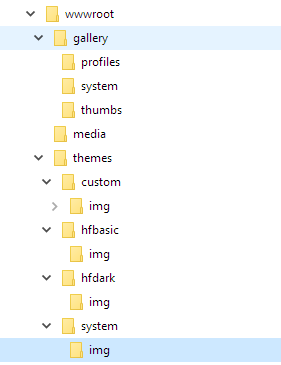
When encountering an image URL with the /auto/ prefix, HyperFluxCMS will look for the file with that name in several locations, in the following order:
- First, it will look for the file in the gallery folder;
- If not found there, it will look in /themes/custom/img
- If not found there, it will look in /themes/
/img - If not found there, it will look in /themes/system/img
- If not found there, it will accept the file as not found and respond with a 404 error.
Thus, suppose your site has an image used as a logo called logo.jpg. You can reference it by /auto/logo.jpg. If it exists in the gallery, it will be used. Otherwise, another one will be used, searched in the order mentioned above.
This allows, for example, you to use a THEME that you generally like, but you don't like the wallpaper, so you can replace it with one of your preference without having to mess with the files related to the chosen Theme (assuming the theme creator used /auto in the image links).
The Thumbnails Problem
It is very common for the same image to be shown in two different sizes on the site: a thumbnail and an original size.
HTML, the HyperCode language, and also HyperLite, allow you to do this without additional work. For example, store a photo with 4000 x 3000 pixels and, to show it small (e.g., 80x60 pixels), simply specify using the width and height properties that this is the size at which it should be displayed.
It works. The problem is that for this, the entire image, at its original size, is transferred to the visitor's browser to then be displayed as a thumbnail. In this process, server bandwidth is consumed, the visitor's internet quota is consumed, and download time for the image is used.
A photo with 4000x3000 pixels in JPG format averages 3 to 4 MB or much more. If we are talking about a post with 10 photos, that's up to 40 MB. A significant effort and waste of bandwidth and internet quota.
One solution to this would be to manually create a thumbnail of the image, at the desired size, and upload it to the gallery. The same image, at 80x60 pixels, would occupy less than 4kb, ONE THOUSANDTH of the size of the original photo, making loading much faster.
But then we generate other problems:
- One is the effort of manually creating thumbnails for each desired image and uploading each one to the gallery with a unique name.
- Another is that if we later update the image to a newer one, the effort has to be repeated all over again for each thumbnail size that is used on each page of the site.
- Also, when deleting the image because it is no longer needed, all thumbnails must also be deleted manually.
- And finally, the desired size of each thumbnail must be anticipated in advance while designing the site or page.
HyperFluxCMS's approach
HyperFluxCMS has a mechanism that combines the best of both worlds: the speed and economy of thumbnails with the lack of need to manually create thumbnails.
When an image is accessed from a HyperFluxCMS server with certain parameters, the system automatically generates a thumbnail with the provided parameters, stores the image in a special folder for thumbnails, and sends an image exactly at the desired size.
The next time the image is accessed with the same parameters, the thumbnail will have already been created and will be sent.
If a gallery image is deleted, all corresponding thumbnails will also be automatically deleted.
If a new image with the same name is uploaded to the gallery, new thumbnails will be created when requested.
Although it is not recommended to use the feature to ENLARGE an image, it CAN be used without problems, with the obvious and inevitable apparent "loss of resolution" inherent to any conventional upscaling algorithm.
Using Automatic Thumbnails
To access a thumbnail of an image, you must provide the name of an existing image in the gallery and add a colon : and its parameters.
There are THREE parameters (no more, no less), separated by a dot (.):
- The first parameter is the width of the thumbnail image in pixels.
- The second parameter is the height of the thumbnail image in pixels.
- The third parameter is the IMAGE MODE, which can be stretch, fit, or cover. See more at Thumbnail Modes.
For example, photo.jpg:200.130.fit
Will generate (or access, if it has already been generated) a thumbnail of the image /gallery/photo.jpg, with 200 pixels wide, 130 pixels high, and in fit mode.
The generated thumbnails are saved in the /gallery/thumbs/ folder and are ALWAYS generated in JPG format, regardless of the original image type.
But this is just technical information. For those writing the post, it is not necessary to know this detail. Just know that when referencing an image using photo.jpg:200.130.fit, the browser will receive an image with the described characteristics.
Important: This feature only works with images in the site's GALLERY and in the site's own theme images, as well as /auto/ images. But it does not work for external images hosted on other sites or images in other folders.
Fit, Cover, or Stretch
Thumbnails automatically generated by HyperFluxCMS can be created using three different algorithms. See the difference between them to decide which is most suitable for each case.
First of all, if the thumbnail proportions are exactly the same as the original image, all three methods will return the same result.
For example, if the original image was 1600x1200 pixels and the thumbnail is 800x600, 160x120, 320x240, any of the modes will have the same result. The difference occurs when the thumbnail has different proportions from the original image.
- stretch: Using "Stretch" mode will cause the thumbnail image to contain all the content of the original image, but if it is out of proportion, the image will be distorted and stretched or shrunk vertically and horizontally to reach the desired size.
- fit: Using "Fit" mode will cause the thumbnail image to contain all the content of the original image, but if it is out of proportion, the thumbnail will have FEWER pixels horizontally or vertically, ensuring that proportions are maintained without distortion.
- cover: Using "Cover" mode will cause the thumbnail image to have exactly the specified size, be 100% filled with part of the original image, but if it is out of proportion, part of the image (top/bottom, or sides) will be cropped, focusing on the center.
Examples:
[img="thumbnail-sample.jpg"]

[img="thumbnail-sample.jpg:320.200.stretch"]

[img="thumbnail-sample.jpg:320.200.fit"]

[img="thumbnail-sample.jpg:320.200.cover"]

Clearing the thumbnail cache
Every time an image is accessed with thumbnail parameters, HyperFluxCMS first checks whether the thumbnail image with the requested parameters already exists. If it exists, it sends the image. If it does not exist, it creates the thumbnail and stores the thumbnail file in "wwwroot/gallery/thumbs".
When an image is deleted from the gallery, its thumbnails are also deleted, so that when another image is uploaded, there are no outdated thumbnails left.
However, it is possible that for some reason, some image remains that was not deleted. Thus, when the visitor accesses the page that references that specific thumbnail, the displayed image is from the previous, outdated image.
To avoid this, there is the "Clear Thumbnail Cache" option.
The "Clear Thumbnail Cache" operation also serves to reduce the storage space occupied by thumbnails. It is useful for eliminating thumbnails of images that have not been recently accessed by visitors, freeing up disk space and also facilitating a complete backup or migration of your site.
To clear the cache, follow these steps:
Log in with a user account that has "Other Administrative tasks" permissions, select the "Administrative Tasks" option.
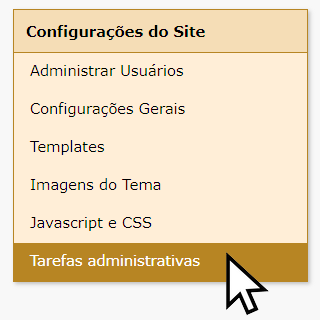
Then look for and click the "Clear Thumbnail Cache" button.

All thumbnail files will be deleted.
Note that this normally does not happen. It is not necessary nor recommended to clear the cache very frequently. The thumbnail cache was created to OPTIMIZE your site, making access faster and with less processing. It is only recommended to clear the cache when you notice that some thumbnail is outdated or if you are preparing the site for a complete backup or migration, via FTP or control panel, and thus reduce the number and size of files to be transferred.
See also:
Images in HyperCode
Images in HyperLite