
HyperFluxCMS
Fast. Flexible. Free.


HyperFluxCMS
Users
Managing users
After configuring the site, it's time to create and manage users. Users are the people who will have the permission to change the site or publish posts on it.
When installing HyperFluxCMS, a user called "admin" is automatically created.
You CAN start publishing using the "admin" user. But it is highly recommended that you create a new user. This way you can choose a username for it or even delete it if you ever need to.
Creating a user
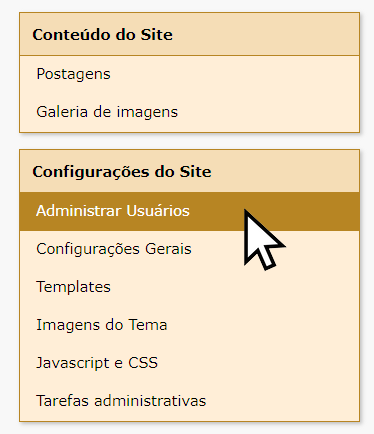
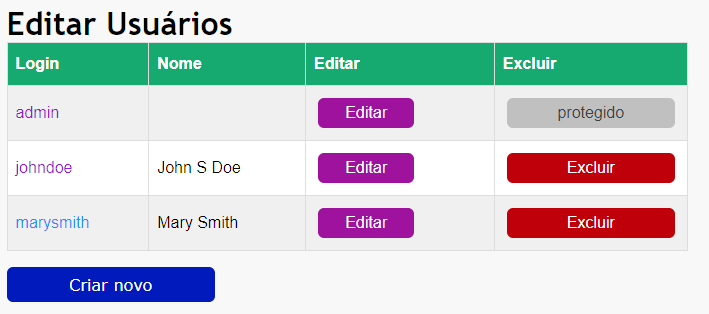
In "Manage Users", you will see a list of registered users. Click "Create New".
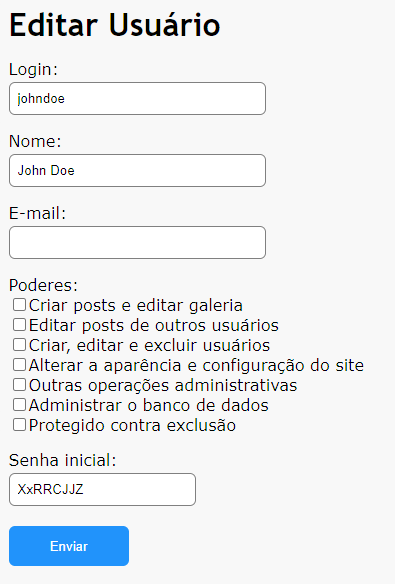
Type a username for the new user. It must be a unique name, using only unaccented letters and numbers. There cannot be two users with the same username on the same site.
Optionally, type the user's real name (this may appear as the author name of posts).
Optionally, type the new user's email address. This information is reserved for future use and is not used in the current version of HyperFluxCMS.
In Password, type the password the user should use to log in for the first time. Later they should change it.
Then check the permissions the user will have.
- Create posts and edit gallery: This gives the user the right to create posts and upload images to the gallery. It also allows deleting images. The user can delete and edit their own posts;
- Edit posts from other users: The user can edit and delete posts created by other users. It is highly recommended to have at least one user with this permission, because if a user is removed from the team (for example, fired), or forgets their password, or for some other reason can no longer log in, it is important to have someone who can correct or delete their publications;
- Create, edit, and delete users: gives the right to create, delete, and edit other users;
- Change site appearance and configuration: gives the user the right to change site settings and edit themes, Javascript and CSS files, and system images
- Manage the database: reserved for future use. Recommended to leave unchecked, except for the "admin" user, for which it is recommended to leave checked.
Then check the user's additional settings
- Protected against deletion: prevents a special user from being deleted by mistake;
- Suspend/block user: temporarily suspends all user permission: they can no longer make posts, change with the gallery, site settings, etc. until another user with permission to manage users unlocks them. It is recommended to block a user when they are no longer part of the team, but you want the posts they published to continue in their name.
After all this, click "Save" and wait. The new user will be created. Notify the new user of their username and the password you created so they can log in and complete their inclusion, changing the password and uploading a profile image.
Editing a User
In the Users listing, click the "Edit" button corresponding to the user you want to edit.
A page with the user's data will open. There you can change their permissiosn.
Be very careful to ensure there will ALWAYS be at least one user with the permission to manage users. Without this, it will no longer be possible to create, delete, and edit users, and it will be very difficult to fix this.
Deleting a User
In the Users listing, click the "Delete" button corresponding to the user you want to delete.
It may be that the user you want to delete appears as "protected" and it is not possible to delete them. This is intentional to prevent accidental deletion of important users. To do this, you must first EDIT the user, uncheck the "Protected against accidental deletion" option, and then return to the user listing. This time the "Delete" button should be available.
Important notes:
It is possible to delete yourself. After that, you will lose access to the site and must log in with another user.
ALWAYS have a user with the permission to manage users. Without this, it will no longer be possible to create, delete, and edit users, and it will be very difficult to fix this. Therefore, it is recommended to leave the "admin" user idle for when you need it, and create at least one new user for for regular and daily use of the website.
When deleting a user, all posts they published and images they uploaded will remain on the site. If you wish, you must delete them manually one by one.
Depending on the page template you choose for publications, the name of the user who created the post will appear. If the user is deleted, the name will no longer appear. If you want the name of the original creator of the post to continue appearing, you should block/suspend the user instead of deleting them.