
HyperFluxCMS
Fast. Flexible. Free.


HyperFluxCMS
Making and restoring backup
Learn how to make and restore backup copies of the content of your site.
Learn how to back up your site's content. And how to restore your site in case of server problems. And also how to migrate your site with the same content to another server.

HyperFluxCMS has two ways to make and restore backups, copies of your site's security. They can be used to restore your site's content in case of server problems. They can also be used to migrate your site to another provider if you are not satisfied with the provider you currently use.
Making backup via Control Panel
The first way is through the HyperFluxCMS Control Panel.
To make and restore backups, you need to log in with a user that has "Administrator" or "Other administrative tasks" permission.
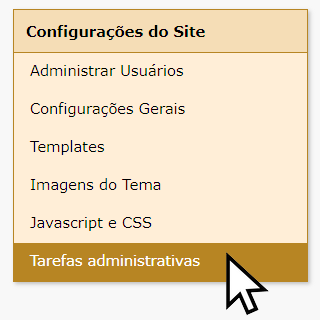
After logging in, click the "Administrative Tasks" button;
Then look for the "Download Data" option and click the "Download" button.
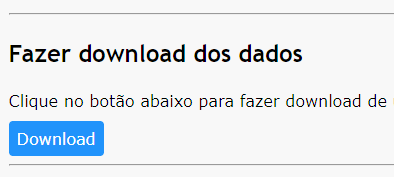
A file with the site's content will be downloaded in the browser: settings, templates, and posts. The file has extension ".hfc". Save it in a safe place.
Restoring backup to the same server, via Control Panel
Log in to an account of a user that has "Administrator" or "Other administrative tasks" permission.
After logging in, click on "Administrative Tasks".
At the bottom of the screen, a button will appear for you to select the desired backup file on your computer. It must be a file with extension ".hfc" that was previously downloaded in the "Backup" option.
Then select the items you want to replace on the site with those contained in the file.
Click Submit. The selected type of data will be deleted from the server and replaced by those existing in the file you selected. This operation may take some time. Be patient. Do not click "Submit" again until you have received a response from the server.
CAUTION
The selected items will be DELETED from the site and replaced by those in the backup file. Changes, additions, and modifications to posts, templates, and settings (whichever is selected) that were made after the date of the backup file will be lost. Posts that have been deleted will be overwritten.
This backup process via Control Panel only copies and recovers the mentioned items: templates, posts, and settings. Other items, such as themes, gallery images, Javascript and CSS that have been changed, ARE NOT included in the backup process in the current version of HyperFluxCMS.
Restoring backup to the same server, via Control Panel
For security reasons, the list of registered Users in the system is NOT included in the backup process. This is not a problem if you are copying or restoring backup on the same server. But if you are restoring a backup on another server, for migration, it is necessary to perform an additional step, described below.
To migrate your site to another server, or if you are reinstalling HyperFluxCMS from scratch, instead of just restoring the data to the same location where it was previously running, it is important to keep in mind that:
The gallery and themes must be copied separately, via FTP or through the control panel offered by the hosting provider, such as Plesk.
Furthermore, another crucial piece of information is that it is necessary to manually recreate the complete list of system users, keeping the same usernames (logins) as the previous site. This ensures that the posts created by each user will continue to be attributed to the original authors, maintaining each one's permission to edit and delete their own posts, and keeping the "Post Author" information consistent, which may appear on each page.
If you restore a backup and any of the posts do not find the original author by login, the post will become "orphaned", without a defined author. And it will remain that way until it is edited by some user with permission to publish content and will then be attributed to them as the author.
Using FTP
Another way to make and restore backups is to directly access the data files, using FTP.
Connect to the site using your preferred FTP client program. Use the login credentials and password provided by your hosting provider.
If you are making a backup, copy the files from the server to your computer. If you are restoring a backup, copy from your computer to the server, replacing existing files.
When restoring the service or uploading files to a new provider, it is essential that the folder structure follows exactly the original. And that the data, gallery, and themes/custom directories are configured to give HyperFluxCMS write permission.
your site
+ hyperfluxcms
+-- data
+-- wwwroot
+-- gallery
+-- profiles
+-- themes
+-- custom
+-- folder items
+-- system
+--- folder items
+-- your-theme (if you installed a custom theme)
+-- folder items
To copy from your computer to the server, you will probably have to temporarily stop the IIS service, and restart it after replacing the file (on Windows); On Linux, you must stop the HyperFluxCMS service and restart it after replacing the files.
The purpose of this article is not to teach how to use FTP, SSH, or control panels like Plesk. If you have difficulty using them, you can seek help on the Internet, support from your provider, chatbots like ChatGPT or DeepSeek, hire the services of a technician, or hire our Premium Support to assist you or perform the process.
The files that must be copied are
- /data/hyperfluxcms.db
- /gallery/all-image-files
- /gallery/profiles/all-image-files
- /media/all-media-files
- /themes/full-folder-and-subfolders
It is only necessary to copy /media/all-media-files if your site uses any audio or video files of its own. HyperFluxCMS comes with one file of each type as a demonstration, but they can be ignored and deleted.
Depending on the HyperFluxCMS debugging configuration, some text files may have been created inside the /data folder. You do not need to copy them, and you can delete them at any time.
The thumbs folder inside gallery does not need to be copied. Thumbnail image files will be recreated automatically as needed.
After copying/replacing the files, start or restart the service.
Using the Control Panel
You can also make and restore backups using the Control Panel provided by your hosting provider, such as cPanel or Plesk.
The purpose of this article is not to teach how to use them. If you have difficulty using them, you can seek help on the Internet, support from your provider, chatbots like ChatGPT or DeepSeek, hire the services of a technician, or hire our Premium Support to assist you or perform the process.
Look in the control panel for the file management option. Copy the same files and folders mentioned in the previous section.
To restore the backup or migrate to a new server, it may be necessary to look in the control panel for the option to stop the service before uploading the files. Don't forget to restart the service when you finish.
Getting an error when starting the service
This is a very common problem. The most likely causes are:
- The folder structure is incorrect. Check and fix if necessary;
- Some folder does not have write permission. Check and fix if necessary;
- The HyperFluxCMS executable binaries folder does not have execute permission. Check and fix if necessary.