HyperFluxCMS
Fast. Flexible. Free.


HyperFluxCMS
Your user profile
Configure your user profile, name, picture and password
Learn how to edit your profile, your picture, and change your password.
Changing the Password
When a new user is created, they are created with a random password and without a profile picture. The site administrator must create the necessary profiles for each site collaborator and inform them of the username (which will be the login) and the initial password. After that, the user must log in and complete the configuration.
The same applies to the "admin" user that is automatically created when installing HyperFluxCMS.
First of all, you must log in using the provided username and password.
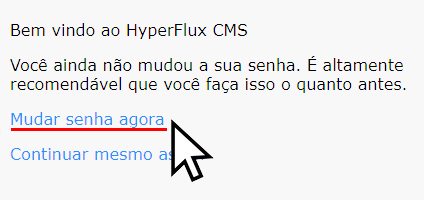
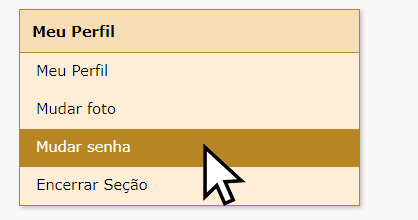
If everything goes well, you will be logged in. If you haven't changed your password yet, a message will appear informing you of this and recommending that you change it. To change it, click the suggested link "Change password now" or the "Change password" option in the control panel.
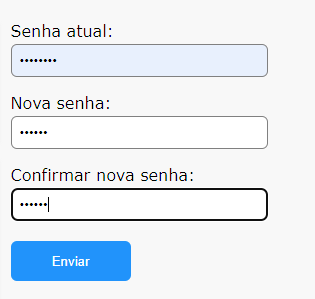
Then provide your current password.
Then type your new password.
Then, to confirm, type your new password again and click "Submit".
If everything is correct, your password will have changed. If not, go back and correct it.
You may need to log in again, now using the new password.
Changing my information
After changing your password, click on "My Profile".
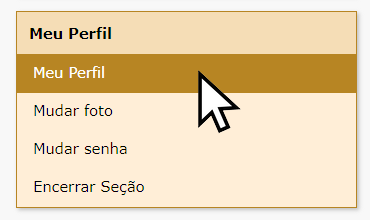
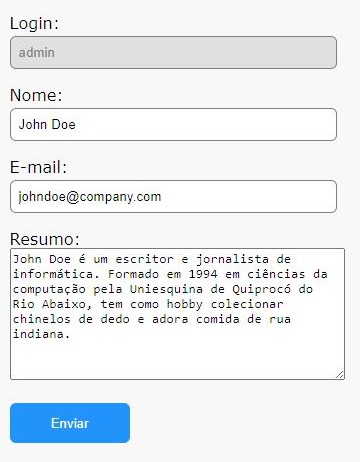
Check and, if necessary, edit your name information (the way you want it to appear on the site).
And do the same with your email. The email is reserved for future use, but it's good to have it registered. Future versions of HyperFluxCMS may use this information for things like password recovery or two-step authentication ("2FA"). The email information IS NOT PUBLISHED to site visitors, so don't worry about that.
If you changed anything, click "Submit" to save the changes.
Changing the profile picture
Click on the "Change Picture" option.
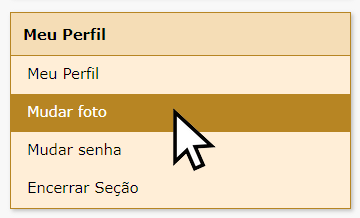
See your current profile picture. Initially, it's just a black and white silhouette, but it could be another picture if you've already changed it before.
To change the picture, have a file on your computer that is necessarily:
- In JPG format
- Exactly 200 x 200 pixels.
And preferably less than 20 Kb. It can be larger, but the larger the file, the longer it will take to upload.
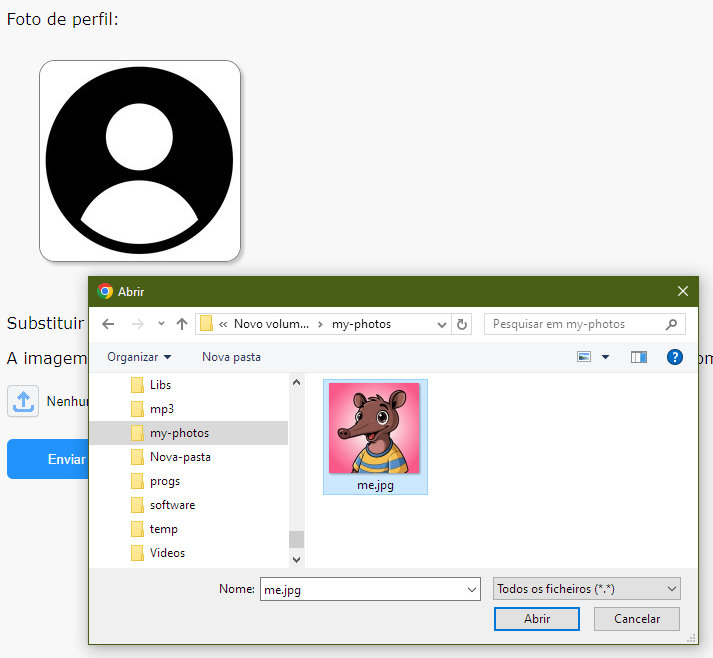
Click the upload button and select the file.
Then click the "Submit" button.
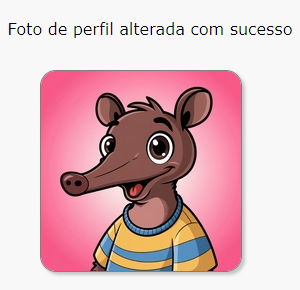
If everything is correct, your profile picture will be updated. If there is any error, go back and correct it.